Apple could not verify app is free of malware open anyway?
Apple could not verify app is free of malware open anyway: when Open Anyway is fine on your Mac, when it is the attack, and what to check first.
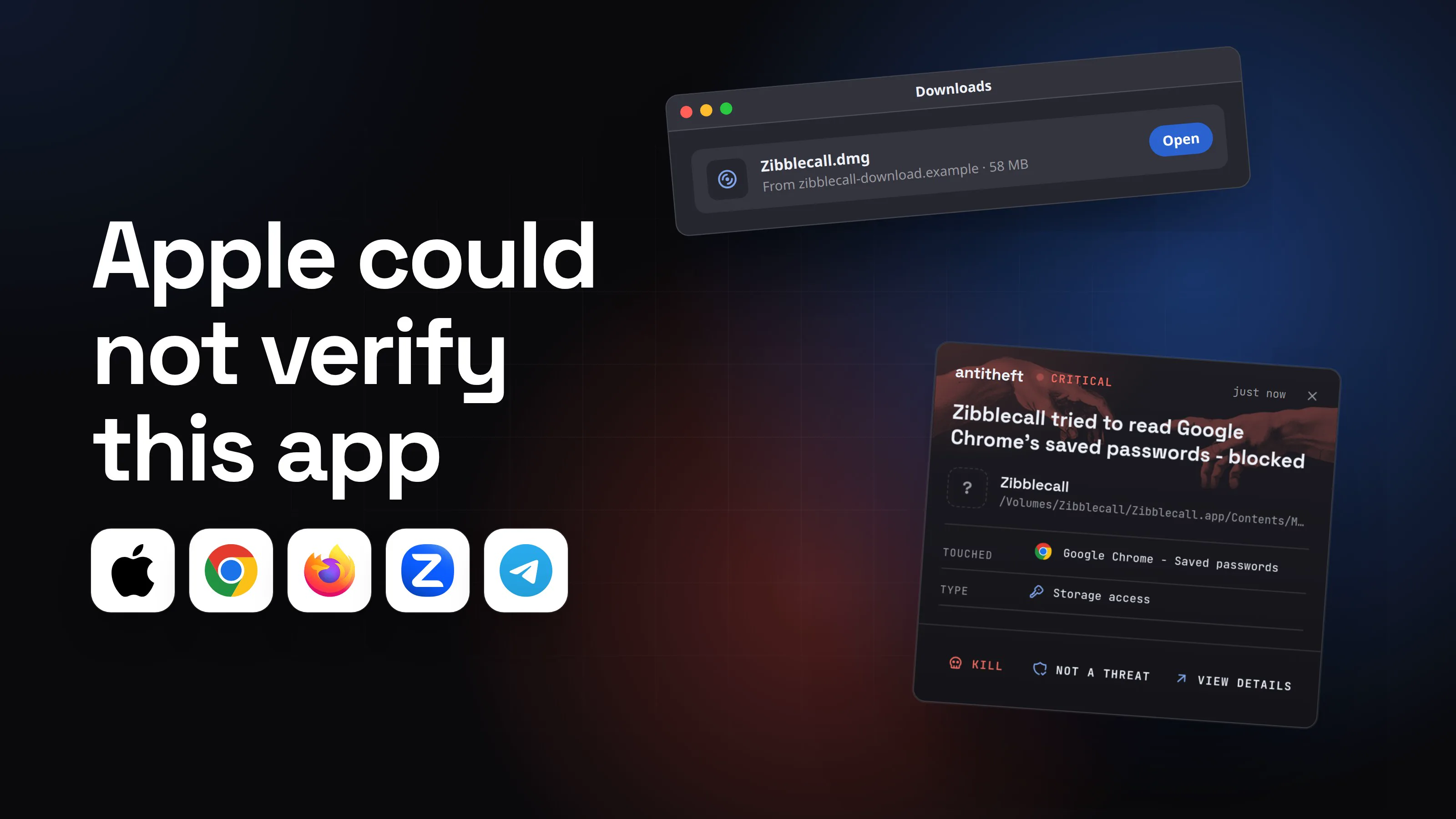
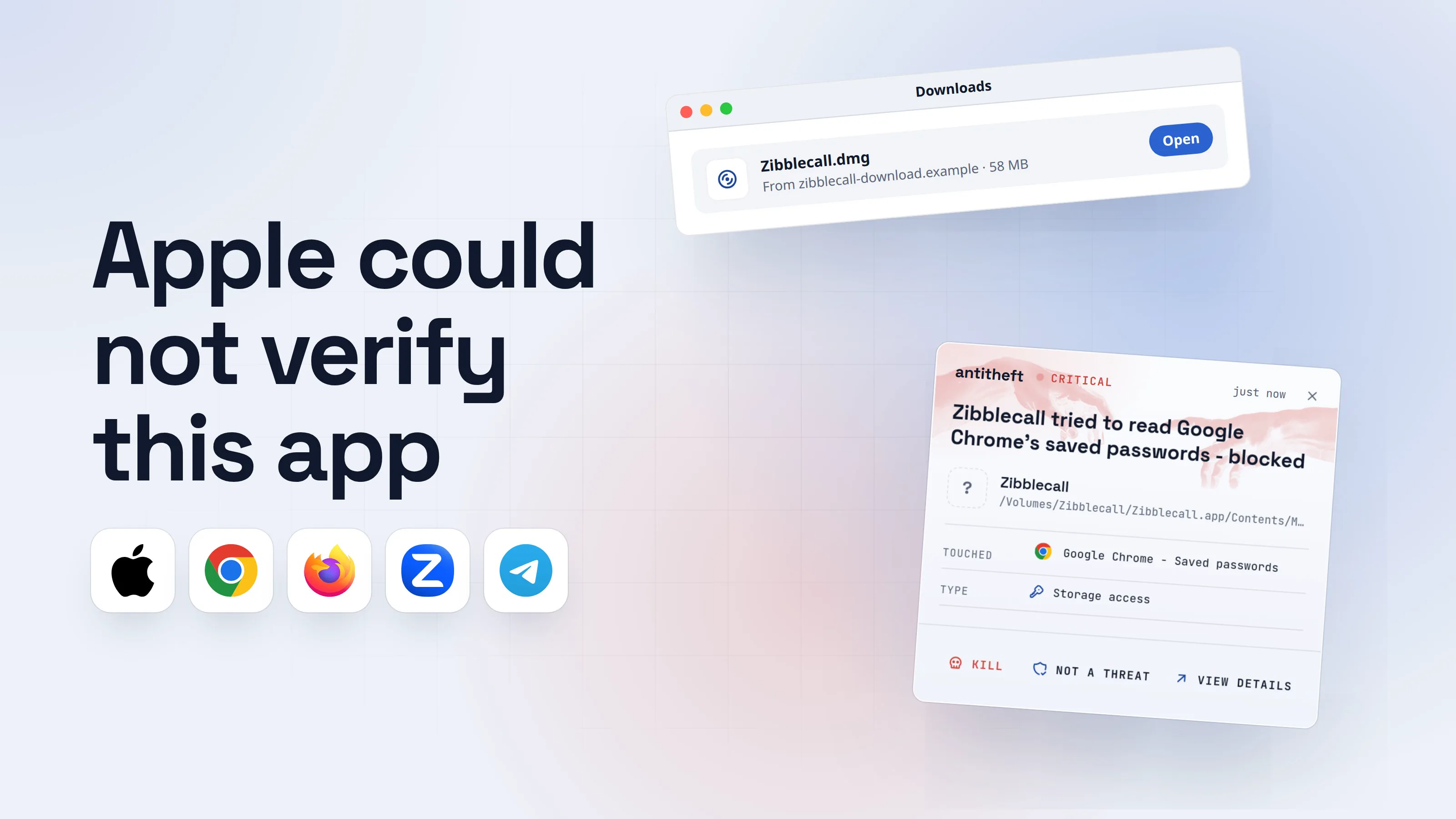
Apple could not verify app is free of malware open anyway: that is the warning, and the button, that stops many people mid-install. When your Mac says Apple could not verify an app is free of malware, the real question is not how to get past it. It is who told you to open this app.
If you chose the app, found it on its maker's own website and need it, Open Anyway is a normal, documented step. If the download itself walked you through Open Anyway, that walkthrough is the attack. Apple says it plainly: overriding the check is "the most common way that a Mac gets infected with malware".
This guide answers the question people type into search, Apple could not verify app is free of malware open anyway: what the warning really says, when the override is fine, what a fake installer looks like on a Mac, and what to do if you already clicked.
What does "Apple could not verify app is free of malware" mean?
It means macOS cannot vouch for the app, in either direction. The warning does not say the app is bad. It says Apple has not checked it.
On a Mac, a feature called Gatekeeper looks at every app you download from outside the App Store. Apple's support page describes two checks: macOS verifies the Developer ID signature, which says who made the app and that it has not been altered, and since macOS Catalina it also requires the app to be notarized, meaning Apple scanned it for malicious software and found none.
An app that fails those checks gets a dialog like this one. The buttons are Done and Move to Trash. There is no Open button, on purpose.
- 1You double-click an app you downloadedThe first time you open software from outside the App Store, macOS checks it.DownloadsZibblecall.dmgFrom zibblecall-download.example · 58 MBOpen
- 2macOS refuses to open itApple's wording is confirmed on its support pages; the window here is a generic drawing.Not opened1Move to TrashDone
- 1This is your Mac doing its job, not the app asking for something
There are three different warnings, and they mean three different things. Apple lists them on its support page:
- "Apple cannot check the app for malicious software." The app is not signed by a known developer or not notarized. This is the one this guide is about. You may be able to override it.
- "The app is damaged" or "can't be opened". macOS found that the app was modified or broken after it was released. Apple says it might have been tampered with. Do not override this one.
- "The app will damage your computer", or known malware found. macOS detected malicious content, or its authorization was revoked. The app is moved to the Trash. Do not look for a way around it.
Is it safe to click Open Anyway?
Open Anyway is safe only when you chose the app yourself and got it from its real maker. The button itself is just a switch: it saves this one app as an exception, so the Mac stops checking it.
Apple's wording is careful. If you are "certain that the app is from a trustworthy source and hasn't been tampered with", you might be able to temporarily override your Mac security settings to open it. Apple's own advice first: look for the app in the Mac App Store, or find an alternative.
Ask these questions before you click:
- Did I go looking for this app? Or did a page, an ad, a message or a "friend" put it in front of me?
- Did it come from its maker? The official website you typed or already know, or the official project page. Not an ad, not a mirror, not a link in a chat.
- Does anything tell me to click Open Anyway? A real app does not need to coach you through your Mac's security settings.
- Is it the kind of app that is usually unsigned? Small open-source tools and indie apps often are. A big, well-known app that asks you to override the check is not.
- Is there a safer version? The same app in the Mac App Store is checked by Apple.
If any of those fails, stop. Delete the download and get the app another way.
When is the warning fine, and when is it the attack?
The warning is fine when the app is small, you chose it and it comes from its own project. It is the attack when the app wants you to override the check, not when your Mac tells you to.
Usually fine:
- An open-source tool you found through its official project page, from a developer who does not pay for Apple's signing.
- A utility you have used for years that skipped notarization.
- An app from your employer or a school, where your IT team told you to expect the warning.
Usually the attack:
- A download from an ad or a search result, for a popular app (see fake ads for real apps).
- A "required update" for your browser or video player (see fake browser updates).
- A cracked app, a game cheat or a patch (see cracked software).
- A meeting app a stranger asked you to install before a call (see fake meeting invite malware).
- Any installer whose own window explains how to get past your Mac's warning.
A real Mac installer does not need you to open System Settings first. The fake ones do, because their authors know the Mac will not run them otherwise.
What a fake Mac installer looks like
A fake installer is a disk image that asks you to remove the one protection standing between you and the malware. Here is the trick, step by step, with a made-up app.
- 1A page offers a free Mac appIt can arrive as an ad, a search result or a link someone sent.ZibblecallFeaturesDownload
Free meetings, no sign-up
Join video calls in one click.
Download for MacZibblecall.dmg · 58 MB- 1Not the maker's own website
- 2The disk image explains how to get past your MacIt is the installer's own picture, not a message from macOS.ZibblecallZZibblecall
Setup
1. Open System Settings, then Privacy & Security1
2. Click Open Anyway
3. Enter your password
- 1Real installers do not coach you through your Mac's security settings
- 3macOS refuses, as it shouldThe warning is the protection working. The next step switches it off for this one app.Not openedMove to TrashDone
- 4You follow the instructions and click Open AnywayThis is the only moment your Mac hands the decision to you.Privacy & Security
Security
"Zibblecall" is blocked.
Open Anyway1- 1You are overriding the check because the installer said so
- 5The app asks for your passwordNot macOS: the app draws its own prompt.
Zibblecall wants to make changes.1
Enter your password to allow this.
User NameyouPassword••••••••••2CancelOK- 1The app's own window, asking for your Mac login password
- 2Typing it hands the password to the app
- dangerThe program takes what it came forNothing seems to happen. That silence is it working.
What a fake installer can take from you
- Every saved passwordEmail, bank, exchange, socials
- Your logged-in sessionsAccounts open without a password or 2FA code
- Your crypto walletsGone for good: a blockchain transfer cannot be undone
- A door left openThe attacker can run more programs later
All of it in seconds. You find out days later.
With antitheft
With antitheft, the stealer is stopped at your passwords
- Caught the moment it reaches for your passwords or wallets
- On Linux refused before the file opens, on Windows and macOS stopped right after
- Even the most advanced malware, the kind no antivirus has seen yet
- Touched
 Google Chrome - Saved passwords
- Type
- Storage access
Keep stealers out of your passwords and wallets
- Guards passwords, browser logins and wallets
- Stops malware your antivirus misses
- On Windows, macOS and Linux
macOS said no once, and the installer talked you past it. antitheft does not depend on that first decision: even after you override the check, the program is not the app that owns your browser's passwords, so antitheft stops it the moment it touches them.
Is this really happening? Fake installers on Mac in 2026
Yes. Security researchers keep finding Mac malware that hands you the Open Anyway instructions itself.
- September 2026, Jamf Threat Labs, CloudSyncD. A disk image that mounts as a volume named "Zoom" and looks like a normal Mac installer. Its background picture lists the steps: open System Settings, go to Privacy & Security, scroll to Security, click Open Anyway and enter your administrator password. Jamf found it was only ad-hoc signed and not notarized, so macOS refused to launch it on double-click, and the malware relied on the user overriding that. It is a two-stage backdoor that lets its operator run programs on the Mac remotely.
- December 2025, Jamf Threat Labs, MacSync. A newer variant arrived as an app that was signed and notarized by Apple, inside a disk image posing as a messaging app. It still showed "right-click and select Open" instructions. Jamf reported the developer certificate to Apple, which revoked it.
- June 2026, Palo Alto Networks Unit 42, AMOS. A different route: a fake CAPTCHA told victims to paste a command into Terminal, which downloaded a disk image and opened the app, followed by a fake System Preferences password prompt. See fake CAPTCHA scams.
For power usersNotarized does not mean safe
Apple's platform guide calls notarization a malware scanning service and says XProtect blocks known malware. Both look for what is known. The MacSync case shows the limit: an app can pass the scan and fetch its real payload afterwards, which Apple fixes by revoking the certificate once it hears about it. So a missing warning is not proof an app is good, and a warning is not proof it is bad. Where the app came from tells you far more than either.
How to open an app anyway, the safe way
When you are sure about the app, the override takes four steps. Apple's guide lists them for current macOS, and they only work for a limited time.
- 1Download it from its maker's own siteType the address yourself or use the project's official page, not an ad.PlinkpadNotesDownloadSource
Plinkpad for Mac
Open-source notes. Checksums are published next to the download.
Download Plinkpad.dmg11 MB · checksum below- 1The maker's own address, checked before downloading
- 2Try to open it, and let the Mac refuseThe refusal is what makes the override button appear.Not openedMove to TrashDone
- 3Open System Settings, Privacy & Security, then Open AnywayScroll down to Security. The button stays for about an hour after your attempt.Privacy & Security
Security
"Plinkpad" is blocked.
Open Anyway - 4Enter your login password, then open itThe prompt comes from System Settings, not from the app.
System Settings wants to make changes.
Enter your password to allow this.
User NameyouPassword••••••••••CancelOK - safeThe app is saved as an exceptionYou can open it by double-clicking from now on, like any other app.
- Try to open the app and read the dialog. If it says the app is damaged, or that malware was found, stop here.
- Choose Apple menu > System Settings, then click Privacy & Security. You may need to scroll down.
- Go to Security and click Open Anyway. The button is only there for about an hour after you tried to open the app.
- Enter your login password and click OK. If the warning appears again and you are sure, click Open.
For power usersCheck an app before you override the warning
Two checks take a minute. In Terminal, spctl --assess --type execute --verbose /path/to/App.app asks Gatekeeper for its verdict and prints whether it is accepted and from which source, for example a notarized Developer ID. For a download with a published checksum, shasum -a 256 ~/Downloads/file.dmg prints the file's fingerprint: compare it with the one on the maker's own site. A mismatch means the file is not the one the maker published. Never run a command from a web page or a chat that switches Gatekeeper off or strips the download flag: it removes the check for every app, not just one.
What to do if you already clicked Open Anyway
If you overrode the check for something you now doubt, assume the password you typed and what is saved in your browser are exposed. Act in this order, from a different device you trust:
- Disconnect the Mac from Wi-Fi and Ethernet.
- Move your crypto first. Create a new wallet with a new seed phrase on a clean device and send your funds there.
- Change passwords from the other device: email first, then banking, exchanges, your password manager and socials. If you typed your Mac login password into the app's prompt, change that too.
- Sign out of every session in each account's security settings. That ends stolen logins (see session cookie theft).
- Turn on two-factor authentication wherever it was off.
- Reinstall the Mac before you sign in to anything on it, then change your passwords from a clean device: what to do if your passwords were stolen.
Moving the app to the Trash does not remove what it already started. The full recovery list is in what to do if your passwords were stolen by malware.
A backdoor such as CloudSyncD does not take everything at once: it waits for instructions from its operator. Whatever it is told to fetch, antitheft stops it the moment it touches your browser passwords, session cookies or wallets, because it is not the app that owns them. It does not remove anything. That is the job of the clean-up steps above.
How to protect your Mac from fake installers
Never treat "Apple could not verify" as an obstacle to get around. Treat it as a question: why is this app asking me to?
- Get apps from the App Store first. Apple reviews each app there. It is the first place Apple tells you to look.
- Go to the maker's own website and type the address, instead of clicking an ad or a link in a chat.
- Stop at any installer that explains how to override the Mac. Delete it.
- Do not paste commands from a page that says it will "fix" the installer or "verify" you. See fake CAPTCHA scams.
- Keep macOS updated from System Settings > General > Software Update, so XProtect and Apple's checks stay current.
- Protect what a stealer wants. If one gets through, anything that is not the app owning your saved browser passwords, logins and wallets should be stopped the moment it reaches for them.
That last step is where antitheft fits. On a Mac, as on Windows, it stops any program other than the owning app the moment it touches your browser passwords, cookies and wallets. On Linux it goes further and refuses that program before the file even opens. It sits next to macOS's own checks and does not replace them, and it is not an antivirus: it does not scan or remove malware.
Not sure how likely any of this is on a Mac? Read do Macs get viruses. Windows has the same kind of warning, covered in Windows protected your PC: Run anyway.
Questions people ask
What does "Apple could not verify app is free of malware" mean?
It means the app is not signed by a developer Apple knows and has not been through Apple's notarization scan, so macOS cannot check it. It is not a virus alert: when macOS recognises known malware it says so in different words and moves the app to the Trash. This warning only says Apple has no opinion about the app, so the decision is yours.
Is it safe to click Open Anyway on a Mac?
Only when you went looking for that exact app, got it from its maker's own website or its official repository, and nothing on the page or in the installer told you to click Open Anyway. Apple itself says overriding this check is the most common way a Mac gets infected with malware. If a download or a message told you to do it, do not.
Why does the warning have no Open button, and why did right-click then Open stop working?
Since macOS Sequoia (15), Apple no longer lets you Control-click an app and choose Open to skip the check. Apple's own developer news says users now have to go to System Settings > Privacy & Security to review the app before allowing it to run. That is deliberate: it makes the override a conscious step instead of a reflex.
Why can I not find the Open Anyway button in Privacy & Security?
The button only appears for about an hour after you try to open the app, so try to open the app again first. Then open System Settings, click Privacy & Security, and scroll down to the Security section. On a Mac managed by an employer or school, the setting may be locked by the administrator.
Can I turn the "could not verify" warning off for good?
Apple's Privacy & Security settings only offer two choices: apps from the App Store, or apps from the App Store and identified developers. A web page or video that tells you to paste a command to switch the check off completely is asking you to remove a protection, which is exactly what a malware installer wants.
Do I need antivirus on a Mac?
macOS has built-in defences: Gatekeeper, notarization and XProtect, which blocks known malware. They catch known threats and unsigned apps, but they cannot protect you from an app you choose to override. Read do Macs get viruses for the full answer.
the short version
"Apple could not verify this app is free of malware" means macOS cannot check the app: it has no signature Apple knows and no Apple scan. It is not a virus alert. Open Anyway in System Settings > Privacy & Security is fine for an app you went looking for and got from its maker. It is the attack when a download, a page or a message tells you to click it.
sources
- Apple Support: Safely open apps on your Mac
- Apple Support, Mac User Guide: Open a Mac app from an unknown developer
- Apple Developer News: macOS Sequoia removes Control-click to override Gatekeeper (Aug 2024)
- Apple Platform Security: Protecting against malware in macOS
- Jamf Threat Labs: CloudSyncD, a macOS backdoor in a fake Zoom installer (Sep 2026)
- 9to5Mac: This fake Mac Zoom installer has a sneaky way to bypass Gatekeeper (Oct 2026)
- Infosecurity Magazine: Reworked MacSync Stealer adopts quieter installation process (Jamf Threat Labs research) (Dec 2025)
- BleepingComputer (Palo Alto Networks Unit 42 research): New macOS ClickFix attack silently mounts DMGs to push infostealer (Jun 2026)
- Swiss Mac User: Allow downloaded apps to open in macOS Tahoe (dialog wording on macOS 26) (Aug 2025)