Windows protected your PC run anyway is it safe?
Windows protected your PC run anyway is it safe? It depends on where the file came from. A two-minute check, and how to tell a new program from an attack.
Windows protected your PC run anyway is it safe? It depends on where the file came from, because the message is a reputation warning, not a verdict. Windows cannot see that part. You can. This guide shows what each screen means, when the warning is just a new program, when it is the attack, and a two-minute check to tell them apart.
It is written for Windows 10 and 11. On a Mac the matching moment is a different dialog: see what to do when macOS cannot verify an app.
What does "Windows protected your PC" mean?
It means Microsoft Defender SmartScreen does not know the file you just opened, so it stopped it and asked you. SmartScreen works on reputation. Microsoft's documentation says it checks a downloaded file against a list of reported malicious programs and against a list of files that are well known and downloaded frequently. If the file is on neither list, it shows a warning advising caution.
Two things follow from that, and both matter.
- A warning is not a diagnosis. The file may be a brand-new release of a good program. Nothing has looked inside it and found a virus.
- No warning is not a clean bill of health. A file can have an established reputation, or a valid signature, and still be bad. More on that below.
SmartScreen also only checks files that come from the internet. Microsoft notes that it does not cover files on network shares or other internal locations.
What do the SmartScreen screens look like, step by step?
You see two blue screens, then a Windows permission prompt. The first blue screen only offers Don't run. Run anyway is hidden until you select More info, which is Windows making you slow down once.
- 1You open a file you downloadedFrom your Downloads folder, or straight from the browser.Downloadspagewell-setup.exe48 MBOpen file
- 2A blue screen stops it: Windows protected your PCThe only button is Don't run. The way forward is the small link, More info.
Windows protected your PC
Microsoft Defender SmartScreen prevented an unrecognized app from starting. Running this app might put your PC at risk.
More infoDon't run - 3More info shows who made the file, and Run anyway appearsThis is the screen that matters. Read the Publisher line before you click anything.
Windows protected your PC
Microsoft Defender SmartScreen prevented an unrecognized app from starting. Running this app might put your PC at risk.
App: pagewell-setup.exePublisher: Pagewell Software Ltd1Run anywayDon't run- 1A name, and it is the maker you went looking for
- safeWindows then asks permission to installA grey prompt with a named publisher is what a normal install looks like.User Account Control
Do you want to allow this app to make changes to your device?
pagewell-setup.exeVerified publisher: Pagewell Software Ltd1File origin: Downloaded from the InternetShow more detailsYesNo- 1Grey, and the same name as the screen before
Microsoft colour-codes that last prompt: grey for an app signed by a verified publisher, yellow for one that is unsigned or signed but not trusted. Yellow with "Unknown" as the publisher is the one to refuse.
Is it safe to click Run anyway? When the warning is just a new program
Run anyway is safe when you are the one who went to the maker and the publisher matches. That happens a lot. Microsoft explains that a newly published or newly updated file can show the warning even when it is signed, until its hash or its publisher certificate has built enough reputation. It says that can take several weeks and hundreds of clean installs, and that an unsigned file starts from zero with every new version.
So small developers, niche tools and fresh updates trigger the screen all the time. A developer who ships a Windows app described the same thing in June 2026 and tells users to check the vendor and the signature, then use More info and Run anyway.
It is fine to continue when all of these are true:
- You found the download by typing the maker's address or using a bookmark, not through an ad or a search result you did not check
- You were looking for exactly this program, and you started the download yourself
- The Publisher on the More info screen is the maker's real name, spelled right
- The permission prompt that follows is grey and names the same publisher
- Nobody told you to ignore warnings, turn off Windows Security or "disable antivirus first"
Miss one and the answer changes. Miss the first one and it is probably the attack.
When Run anyway is the attack
The warning is right when the file is the thing the attacker sent you. The giveaway is almost never on the warning itself. It is in how the file reached you.
Real cases from the last year show the routes:
- Fake installers for real apps. In late September 2025, a ransomware group sent people to look-alike sites for Microsoft Teams through search poisoning, serving a fake
MSTeamsSetup.exe, the real installer's file name. Microsoft revoked more than 200 certificates the group had fraudulently used to sign them, in its October 2025 disruption, as BleepingComputer reported. A signature proves who signed a file, not that they are honest. - Fake sites for real services. A stealer reported by Malwarebytes in April 2026 reached victims through fake websites impersonating services like Proton VPN and links from gaming and security videos. It goes after browser data, saved passwords and crypto wallets.
- Cracked games. Malwarebytes reported in June 2026 that pirated games installed a password stealer silently while the game ran. Cracks are the classic place to hear "ignore the warning": see is cracked software safe.
The picture below follows one such download. Everything in it is made up, but it matches how these cases start: a convincing page, a warning that looks like routine friction, and a click that feels harmless.
- 1A look-alike page offers the downloadReached through an ad or a search result. Same logo, same wording as the real site.PagewellFeaturesDownloadHelp
Pagewell for Windows
Windows may warn you about new software. This is normal: click More info, then Run anyway.2
Download for WindowsVersion 6.4.2- 1Not the maker's own address
- 2Real makers write this too. It proves nothing either way
- 2Windows protects your PC, and the Publisher line is the clueOn the real program this showed the maker's name. Here it names nobody.
Windows protected your PC
Microsoft Defender SmartScreen prevented an unrecognized app from starting. Running this app might put your PC at risk.
App: pagewell-setup.exePublisher: Unknown publisher1Run anywayDon't run- 1Nobody vouches for this file. This is the moment to click Don't run
- 3The permission prompt is yellowYellow means unsigned or signed but not trusted, and Unknown is the publisher.User Account Control
Do you want to allow this app from an unknown publisher to make changes to your device?
pagewell-setup.exePublisher: Unknown1File origin: Downloaded from the InternetShow more detailsYesNo- 1Yellow and Unknown: click No
- dangerThe program you ran goes after your passwords and walletsYou gave it permission twice. It needs nothing else.
What a stealer takes after Run anyway
- Every saved browser passwordEmail, bank, shopping, socials
- Your logged-in sessionsAccounts open without a password or 2FA code
- Your crypto walletsEmptied for good, no bank to call
- Your game accountsSkins and items sold on within the hour
Taken by a program you chose to run.
With antitheft
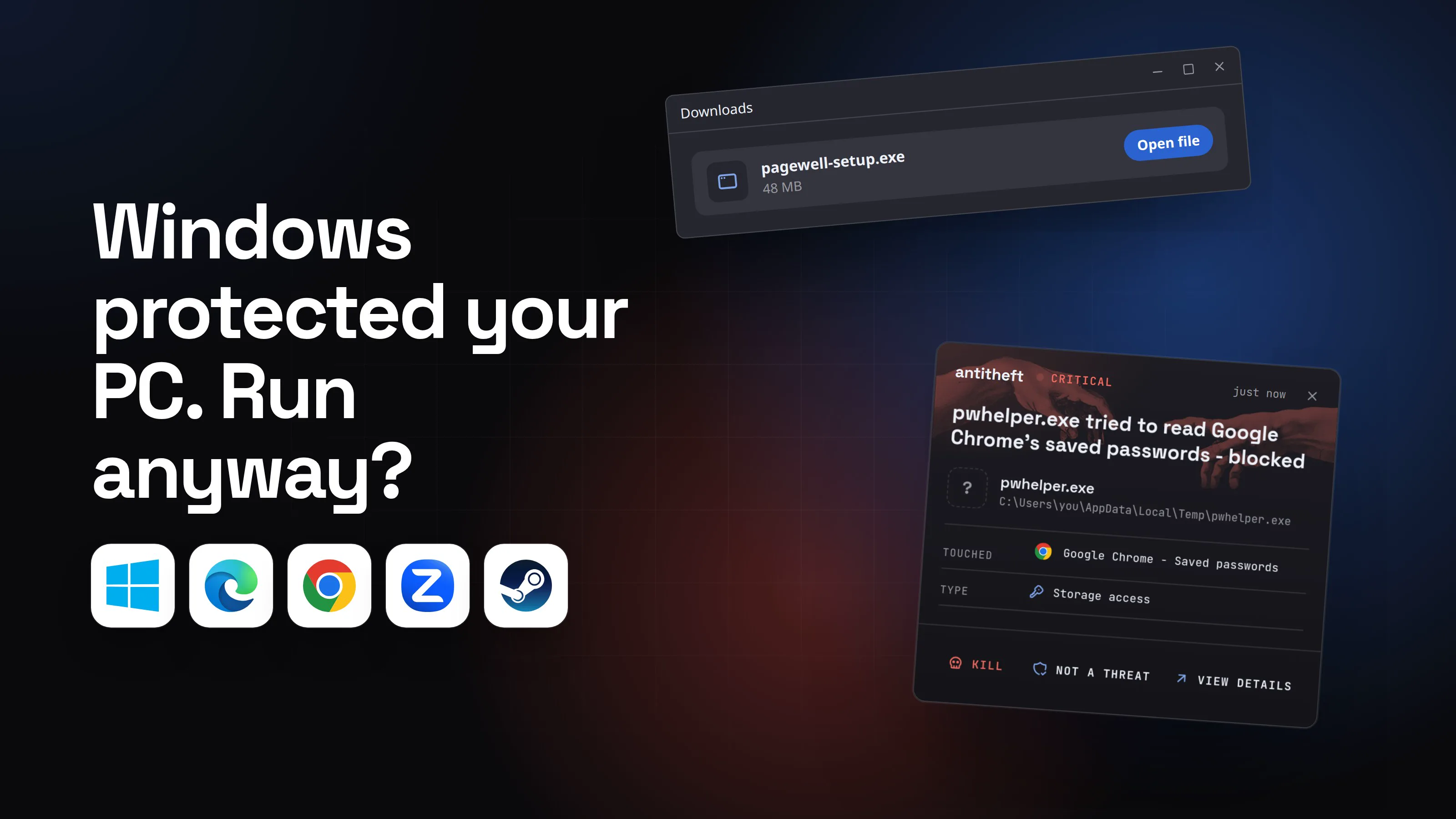
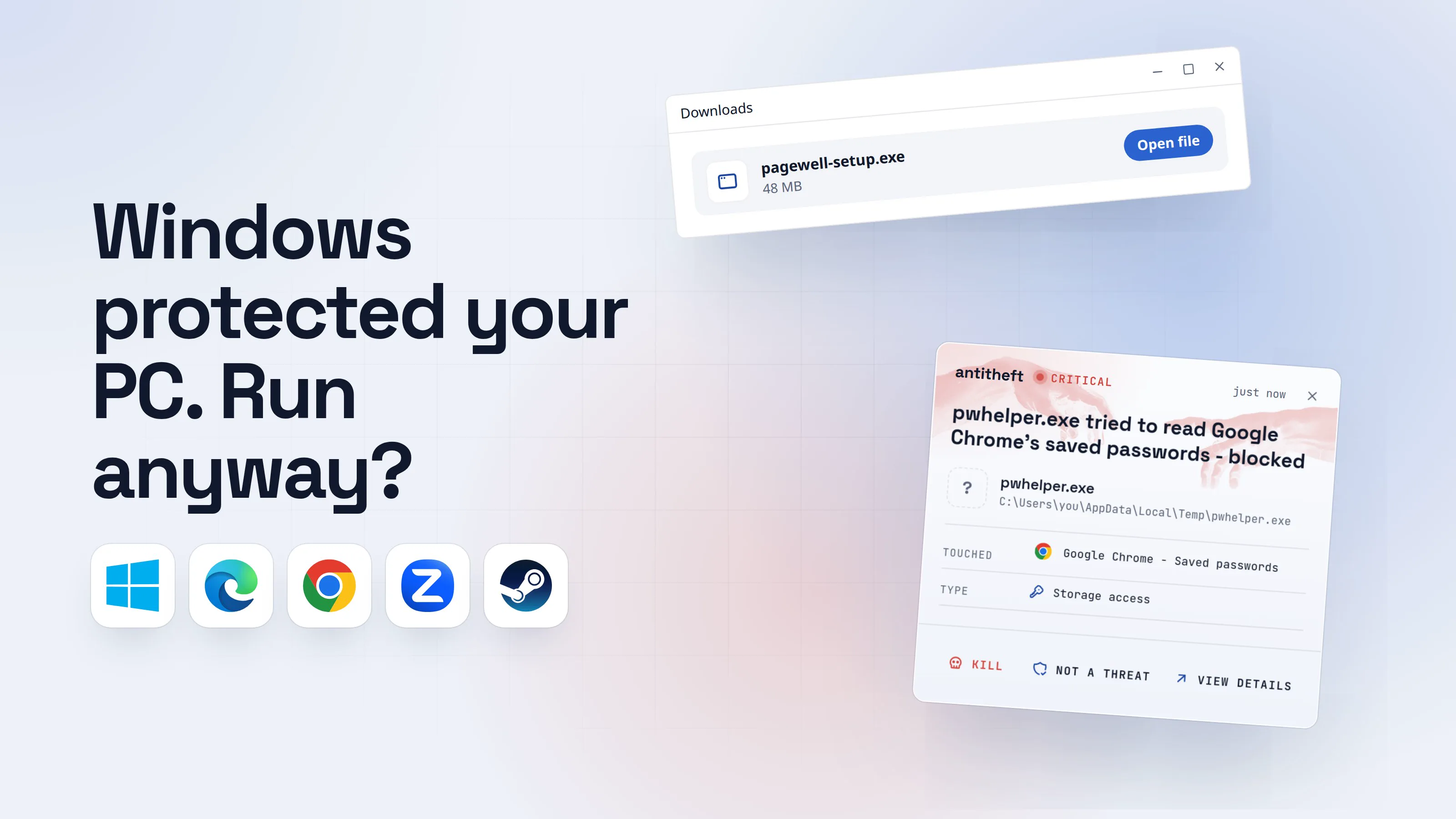
With antitheft, the stealer is stopped at your passwords
- Caught the moment it reaches for your passwords or wallets
- On Linux refused before the file opens, on Windows and macOS stopped right after
- Even the most advanced malware, the kind no antivirus has seen yet
- Touched
 Google Chrome - Saved passwords
- Type
- Storage access
Keep stealers out of your passwords and wallets
- Guards passwords, browser logins and wallets
- Stops malware your antivirus misses
- On Windows, macOS and Linux
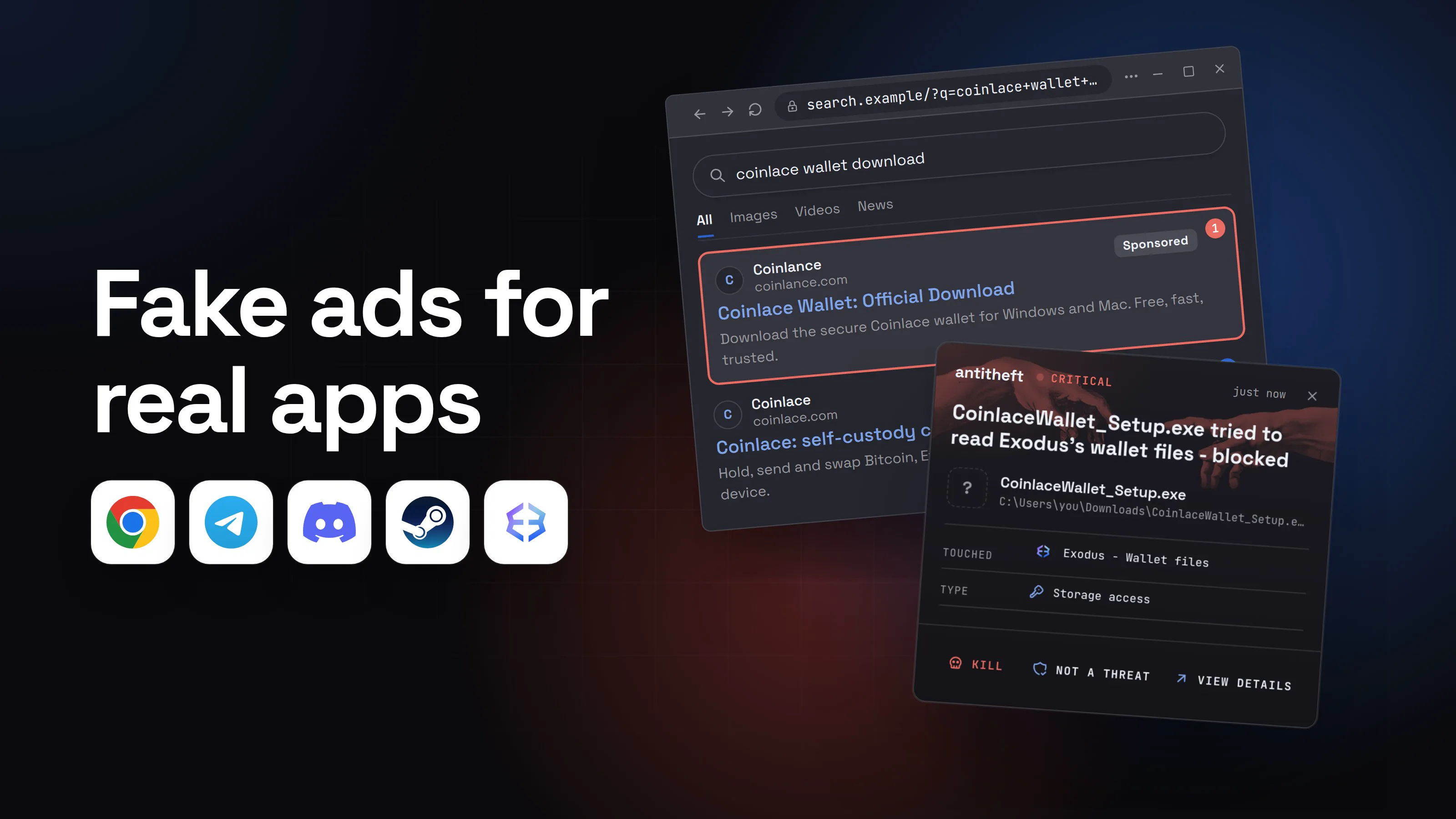
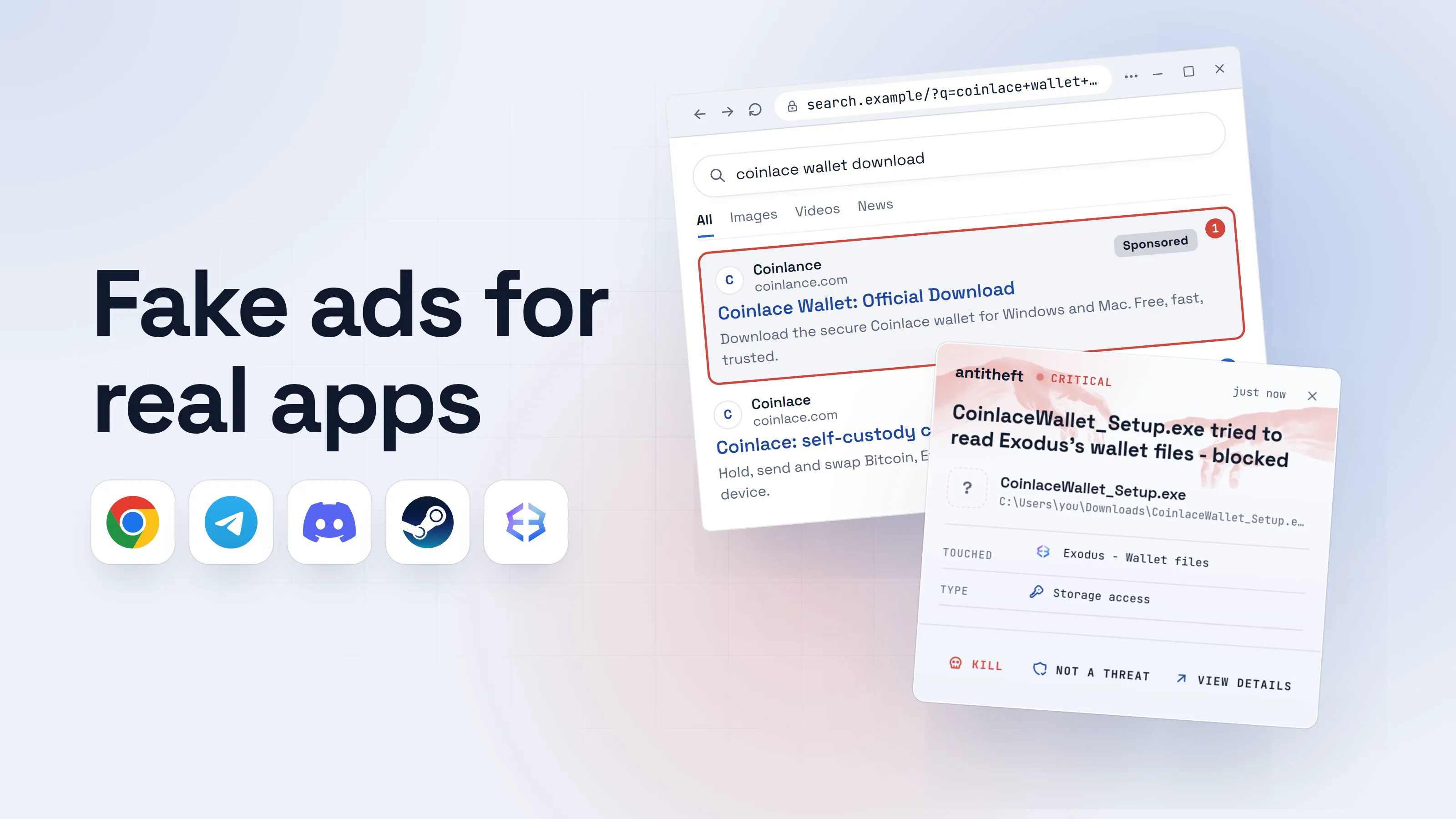
The same pattern, told through fake ads, is in fake ads for real apps, and through a fake "your browser is out of date" page in fake browser updates. Stealers like this are the subject of what an infostealer is.
Does no warning mean the file is safe?
No. SmartScreen is one layer, and attackers work around it. Three facts from the last year show why.
- A valid signature is no promise. Kaspersky wrote in May 2026 that the tampered DAEMON Tools installers carried a valid digital signature of the developer, AVB Disc Soft.
- Code signing can be bought or abused. Microsoft's disruption of the fake Teams installers existed because the attackers got files signed in the first place.
- The check can be switched off. In February 2026 Forcepoint described a spoofed email whose attachment disables SmartScreen through a registry change and removes the Mark-of-the-Web to skip the warnings. That campaign targeted organisations, but it shows a warning you never see can mean it was taken away.
The habit that survives all three is the same one: decide by where the file came from, before you decide by what Windows says.
How to check a file before you click Run anyway
Check the source first, then the signer, and only then decide. It takes about two minutes.
- Ask where you got it. If you reached the page through an ad, a video, a chat message or an email, stop and go to the maker's own site by typing the address. If the program is in the Microsoft Store, install it there: Microsoft says Store apps are re-signed by Microsoft and never show a SmartScreen warning.
- Click Don't run, not More info, if you are not sure. You can always open the file again.
- Open the file's Properties and read the Digital Signatures tab. If it lists a signature, it shows the name of the signer. If the tab is empty, the file is unsigned.
- Compare the signer with the maker. It should be the maker's real company name. A different name, or a name that is one letter off, means delete the file.
- Look at the permission prompt. Grey with a Verified publisher you recognise is normal. Yellow with Unknown is not.
- If something still feels wrong, do not run it. A program worth installing is still there tomorrow.
- 1Stop at the first blue screenIf you cannot say where the file came from, the answer is Don't run.
Windows protected your PC
Microsoft Defender SmartScreen prevented an unrecognized app from starting. Running this app might put your PC at risk.
More infoDon't run - 2Open Properties and read who signed itThe Digital Signatures tab lists the signer. Compare it with the maker's real name.pagewell-setup.exe Properties
Digital Signatures
Name of signerPagewell Software Ltd1A different or misspelled name means delete the file.
- 1Same company as the site you typed in yourself
- safeRun it only if the source and the signer both matchThen More info, Run anyway is a normal way to install a new program.
For power usersThe same check with a hash
- Hash: if the maker publishes a checksum next to the download, compare it with your copy. In PowerShell,
Get-FileHash .\pagewell-setup.exeprints the file's SHA256, which is the default algorithm (Microsoft Learn). Read the published value from the maker's site, not from the page that gave you the file. - Do not use Unblock to skip the warning. The Unblock button in Properties does the same thing as the
Unblock-Filecmdlet: it removes the Zone.Identifier marker that says the file came from the internet, and Microsoft tells you to review the file and its source first (Microsoft Learn). Removing the marker removes the check, so SmartScreen has nothing left to warn about. - Smart App Control (Windows 11): where it is turned on, it can supersede SmartScreen's application reputation and blocks unsigned files unless they have a positive reputation. Microsoft's developer page says its signature checks apply to all executable files, not only downloaded ones.
- Where the setting lives: Windows Security, App & browser control, Reputation-based protection. The Check apps and files option uses SmartScreen to evaluate apps and files downloaded from the web (Microsoft Support).
What if I already clicked Run anyway?
If the file came from the maker's own site and the publisher matched, there is nothing to do. If you are not sure it did, act as if it might not have, and do it in this order.
- Do not type any passwords on that computer yet. If a stealer is running, it sees them as you type.
- Run a full scan with Windows Security, then reinstall Windows if you ran the file and it was not what it claimed: a reinstall is the one step after which you know what is on the computer.
- From a different device, change your passwords, starting with email, banking and any exchange, and sign out of all sessions where the site lets you.
- Move crypto to a new wallet if a wallet app or extension was on that computer.
- Check what starts with Windows. A program you ran can add itself so it returns after a restart: open Task Manager's Startup tab and look for anything you do not recognise.
- Read what to do if your passwords were stolen for the full list, including the accounts people forget.
Where antitheft fits, and where it does not
antitheft does not replace SmartScreen, and it is not an antivirus: it does not scan files or judge a download. Windows Defender and SmartScreen remain the first line, and is Windows Defender enough covers what they do well.
What the antitheft app adds is for the case where you clicked Run anyway on the wrong file. On Windows, any program that does not own your browser passwords, logins, session cookies or wallets is stopped the moment it touches them, so a stealer you installed is caught, even a brand-new one that no list knows. On Linux the same program is refused before the file even opens. The app does not stop the program from starting, and it does not guard your documents or photos.
antitheft also shows you what happens next: its Activity view tells you which programs opened your SSH keys, .env files and developer tokens, so you know what to rotate. The cleaning is the steps above.
Questions people ask
Is it safe to click Run anyway on Windows 11?
Only when you are sure where the file came from. Run anyway is safe for an installer you downloaded yourself from the maker's own site, typed or bookmarked, when the publisher shown matches that maker. It is not safe for a file from an ad, a search result you did not check, a chat message, an email or a cracked-software page. Windows cannot tell you which of those you have; it only knows the file is not well known.
What does Windows protected your PC mean?
It is Microsoft Defender SmartScreen telling you the file you opened is not on its list of well-known, frequently downloaded programs, or matches a list of known unsafe ones. Microsoft's own documentation says a file with no established reputation is treated as higher risk and shows a warning. It is a reputation check, not a finding that the file is a virus.
Why does Windows block a program I know is legitimate?
Because it is new, niche or just updated. Microsoft says even a signed file can show the warning until its hash or publisher certificate has built enough reputation, which can take several weeks and hundreds of clean installs. An unsigned file starts from zero with every new version. The warning on a small developer's installer is normal, and the way through it is the check in this guide.
Is Windows protected your PC a virus?
No. When it appears after you open a downloaded file, it is a real Windows message from SmartScreen. The thing to worry about is the file that caused it, not the message. If you did not open any file and a web page claims your PC is at risk, that is a different thing: a fake alert from a site, not this window.
How do I turn off Windows protected your PC?
You can, but leaving it on is the better choice. The setting is in Windows Security, under App & browser control, then Reputation-based protection, where Check apps and files controls it. For one trusted program, use More info and Run anyway for that file only, after checking the publisher. Any page that tells you to switch the check off for good is giving you a reason to be suspicious.
I do not see Run anyway. What now?
On a work or school computer the option can be switched off by the administrator, and Microsoft documents that policy can prevent continuing entirely. On your own computer, the button appears after you select More info. If it still does not appear, do not hunt for a way around it. Get the program from the maker's site or the Microsoft Store instead.
Does antitheft replace SmartScreen or Windows Defender?
No. antitheft is not an antivirus and does not judge files. It sits next to SmartScreen. If you click Run anyway on something bad, the antitheft app still stops any program that does not own your browser passwords, session cookies and wallets the moment it touches them, and its Activity view shows you which programs opened them. It does not stop the program from starting.
the short version
Windows protected your PC run anyway is it safe? Only when you went to the maker's own site yourself and the publisher shown matches that maker. The message is Microsoft Defender SmartScreen saying it does not recognise the file. If the file came from an ad, a chat, an email or a cracked-software page, click Don't run.
sources
- Microsoft Learn: Microsoft Defender SmartScreen overview (Apr 2026)
- Microsoft Learn: SmartScreen reputation for Windows app developers (May 2026)
- Microsoft Learn: How User Account Control works (Apr 2026)
- Microsoft Support: App & browser control in the Windows Security app
- Microsoft Learn: Unblock-File (the Unblock button in Properties)
- Microsoft Learn: Get-FileHash
- Microsoft Q&A: Digital Signatures tab in file properties
- Microsoft Threat Intelligence: Vanilla Tempest fake Teams installers, over 200 certificates revoked (Oct 2025)
- BleepingComputer: Microsoft disrupts ransomware attacks targeting Teams users (Oct 2025)
- Malwarebytes: From fake Proton VPN sites to gaming mods, this Windows infostealer is everywhere (Apr 2026)
- Malwarebytes: Pirated PC games are delivering password-stealing malware (Jun 2026)
- Kaspersky: Supply chain attack via DAEMON Tools (May 2026)
- Forcepoint X-Labs: ScreenConnect attack, SmartScreen bypass and RMM abuse (Feb 2026)
- Rick Strahl: Windows Protected your PC, dealing with SmartScreen on installation (Jun 2026)