What to do if your passwords were stolen by malware
What to do if your passwords were stolen by malware: from a clean device, secure email, bank, sessions and 2FA, then freeze your credit and report it.
What to do if your passwords were stolen by malware comes down to order and to the device you use. Work from a device the malware never touched, start with the account that can reset all the others, and end the open sessions, not just the passwords. This guide is the account side of the recovery: the steps, what each one looks like, and what to expect afterwards.
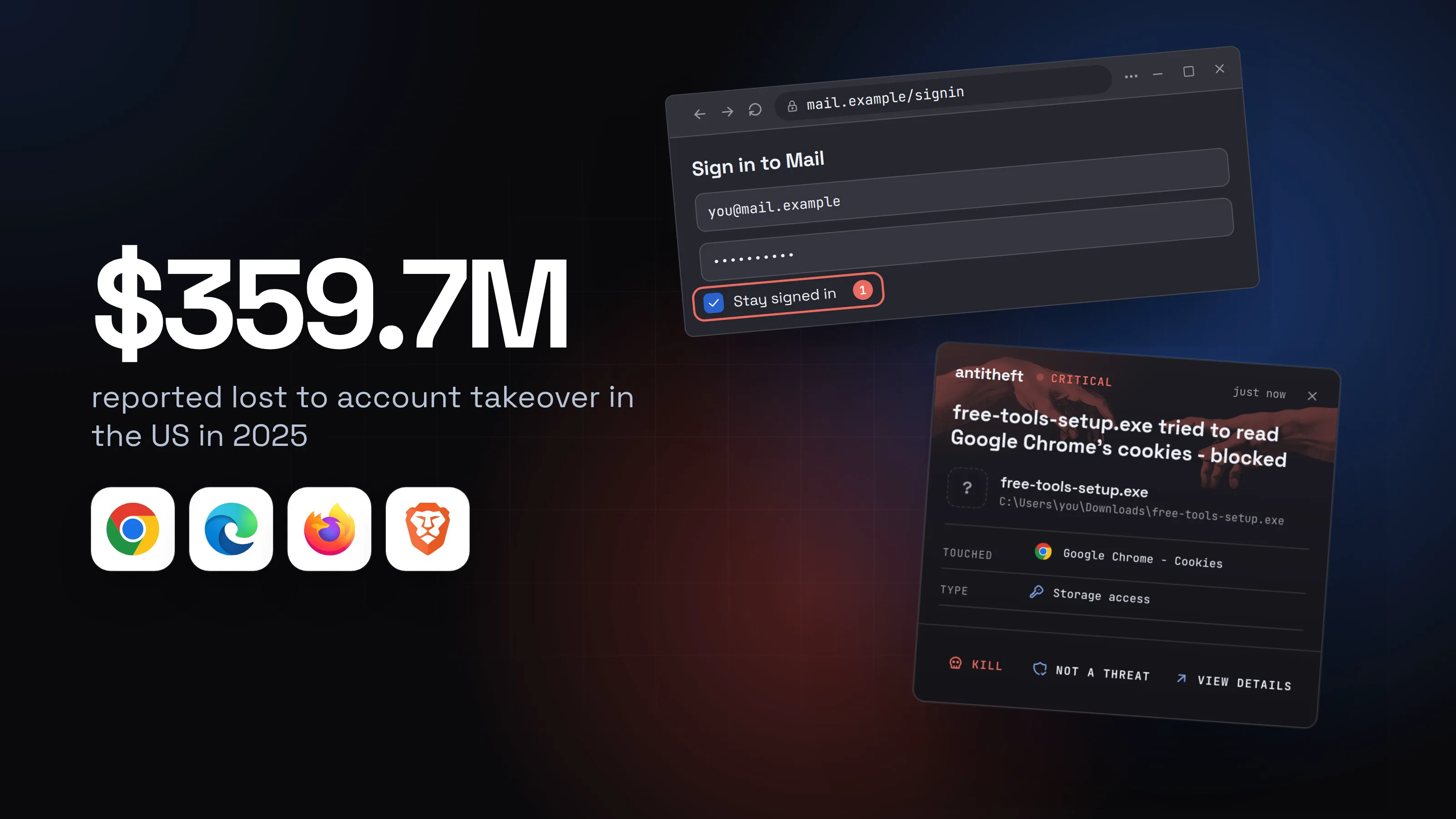
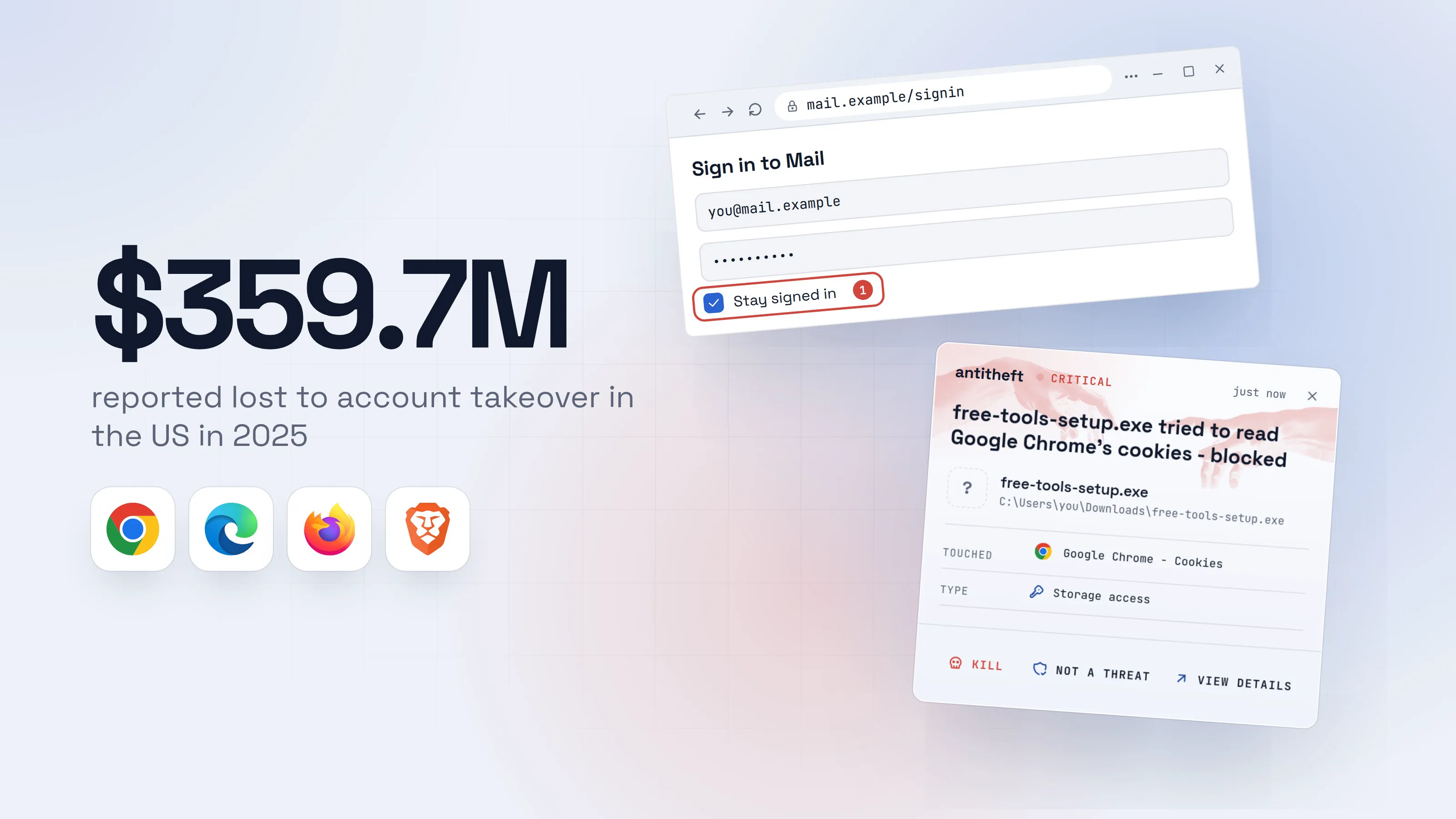
The FBI counts this crime as account takeover, and the losses are large.
Source: FBI Internet Crime Complaint Center, Apr 2026
Passwords can also be lost without malware, by typing them into a fake page. The steps are the same, but see the note near the end on what protects you from that.
The order to follow after stolen passwords
Do the steps in this order: clean device, email, password manager, bank and exchanges, sign out everywhere, 2FA and passkeys, forwarding rules and recovery details, credit freeze, report. The order follows what an attacker can reach from each account, so you close the most powerful door first.
- 1Switch to a clean deviceA phone or a computer you trust. Never the one that ran the unknown program.Which device do you use?Your phone or another computer you trust1The computer that ran the unknown program2
- 1The malware was never on it
- 2It may still copy what you type
- 2Email first, then your password managerWhoever owns your mailbox can reset every other password.
Security
New password, used nowhere else1Two-step verification onSign out of every other device2Then the master password of your password manager.
- 1A new, unique one
- 2Ends sessions a thief may hold
- 3Bank, cards and exchangesCall your bank first if money moved.
Account security
Recent activity: one transfer you did not make1
New password and sign-in alerts onExchange: lock withdrawals to addresses you trust, if it offers it.
- 1Call the number on your card, ask for a recall
- 4Sign out everywhere and revoke app accessA stolen session can outlive a password change.
Where you are signed in
Sign outApps with access to your accountYour phoneLast active todayUnknown deviceLast active 2 minutes ago, unknown city1- 1A thief using your login looks like this
- 5Add two-step verification and passkeysA passkey is not a password you type, so there is nothing to copy or hand to a fake page.Create a passkey
Save a passkey on this computer
Unlock with your PIN, fingerprint or face.1
- 1Only you can approve it
Create a passkeySave a passkey on this Mac
Unlock with Touch ID or your Mac password.1
- 1Only you can approve it
Create a passkeyUse a security key or your phone
Insert a security key, or scan the QR code with your phone1- 1The passkey stays on the key or phone
- 6Check forwarding rules and recovery detailsA rule or a changed recovery address lets a thief back in.
Filters and forwarding
Forward a copy of every message to: [email protected]1
Recovery email and phone: yours?
Delegated access: none- 1A rule you never made
- 7US: freeze your credit, then report itA freeze is free and stops new credit being opened in your name. Even a small loss is worth reporting.
Credit freeze
Freeze on: new accounts cannot be opened1Repeat with each of the three credit bureaus.
Report filed, reference number saved2- 1Free and no effect on your score
- 2Your bank may ask for it
- safeClean the computer, then watch the next two weeksDo not sign in again from the computer until it is clean or reinstalled.Recovery checklistComputer cleaned or reinstalledSign-in alerts on for email and bankNo unknown device, app or rule left1
- 1Check again after two weeks
Step 1: Use a clean device, and what to do if you have only one
A clean device is one the malware never ran on, and every password you change on an infected one can be copied again. Use your phone, a family member's computer or a library computer, and keep the infected computer offline.
If the computer is the only device you have, switch it off for now and borrow one for the first steps. The password changes are urgent. The cleaning can wait a day. For the computer itself, run the system's own scanner and then reinstall. If you still doubt that you were infected, work through this order anyway: a stolen session does not announce itself.
Before you start, write a short list of the accounts that matter, in this order:
- Email, including any old address your accounts reset to.
- Your password manager.
- Bank, cards, payment apps and exchanges.
- Your Apple, Google or Microsoft account.
- Socials, shops, work and game accounts.
Anything saved in the browser, or typed on the infected computer, counts as exposed. What a stealer takes and how is covered in what is an infostealer?.
Step 2: Change your email and password manager first
Change your email password before anything else, because a thief with your mailbox can use "forgot password" on every other account. The UK NCSC makes the same point in its hacked-account guidance: change the password of the hacked account and of any account that shares it.
- Pick a long, unique password that you have never used anywhere else. A password manager can generate it.
- Change it on the clean device, on the provider's own security page.
- Choose to sign out other devices if you are offered the choice. Apple's password page asks whether to remove other devices or keep all devices signed in.
- Then change the master password of your password manager, and turn on its two-step verification.
- Change any other account that used the same password, in order of risk.
Google says that after a password change you are "signed out everywhere" except a few devices, such as the ones you use to verify that it is you and some devices with app access. That is why the next step matters.
Step 3: Secure your bank, cards and exchanges
If money moved, call your bank first, because speed decides whether a transfer can be recalled. The FBI's 2025 report says: "If you discover a fraudulent transfer, time is of the essence. Immediately, contact your financial institution and request a recall of the funds."
- Call the number on your card or on your bank's own app, not one from an email, text or search ad.
- Ask for a recall of any transfer you did not make, and ask what paperwork the bank can give you.
- Change the online banking password and sign out of every session in its security settings.
- Turn on alerts for new sign-ins and new payees.
- Exchanges and crypto accounts: change the password, sign out of all sessions, and look in the security settings for a withdrawal address list, if your exchange offers one.
- If a seed phrase was on that computer, it is compromised for good: create a new wallet on a clean device and move the funds. See seed phrase safety and how to protect a crypto wallet from malware.
Expect a second wave. The FBI's November 2025 alert on account takeover says criminals pose as bank support staff, and it advises bookmarking your bank's login page instead of searching for it. If someone calls to "help" you recover, hang up and call the bank yourself. Tech support scams work the same way.
Step 4: Sign out everywhere and revoke app access
Signing out everywhere ends a stolen login session, and a password change alone does not always do that. A stealer usually copies the small files that keep you logged in (see session cookie theft), so a thief can stay in until the session ends.
Where to find the list, on the three accounts most people have:
- Google: open your Google Account, go to Security & sign-in, then under Your devices choose Manage all devices. Select each device you do not recognise and choose Sign out. Google warns that several sessions can show the same device name, so you may need to repeat it.
- Microsoft: open Advanced security options on your Microsoft account's security page, scroll to Sign out everywhere and choose Sign out. Microsoft says it can take up to 24 hours and that an Xbox console is not signed out by it.
- Apple: at account.apple.com, open Devices, choose View Details and then Remove from Account for any device you do not recognise. Apple notes a device that is still signed in can reappear until you sign out on that device or erase it.
Then review the apps and services you gave access to your account. Google's hacked-account page tells you to remove third-party apps you do not recognise, so look for the list of apps with access in the account's settings. Do the same on your social accounts and your code host.
For power usersIf you write code
Passwords are not the only secrets. Rotate API tokens, SSH keys and cloud credentials, and look for new keys, OAuth apps and tokens in your Git host. Rotate them after a scare even if nothing looks wrong. For next time, antitheft's Activity view shows you which programs read your SSH keys, .env files and developer tokens, so you know what to rotate.
Step 5: Turn on two-factor authentication and passkeys
Two-factor authentication adds a second check to the password, and a passkey replaces the password with a check a thief cannot copy. CISA recommends turning on multifactor authentication on every account that offers it and lists authenticator apps and biometrics next to text codes.
- Turn on two-step verification on email, bank, exchanges and your password manager.
- Prefer an authenticator app or a hardware security key to text messages, where the service allows.
- Add a passkey where the service offers one. Google's page says to create it from the account's passkey settings, choose Create a passkey and unlock your device when asked.
- Look at the list of sign-in methods and remove any phone number, key or authenticator you did not add.
What you see when you create a passkey depends on your system. Google says a passkey is tied to the device where you made it, and that you can use one from your phone on a computer by scanning a QR code. On Windows you unlock with your PIN, fingerprint or face, on a Mac with Touch ID or your password, and on Linux you can use a hardware security key or your phone with the QR code.
Step 6: Check forwarding rules and recovery details
A forwarding rule keeps copying your mail after you change the password, so check for one on every mailbox. The FTC says to check your email settings for rules that forward mail and delete any you did not set up.
- Gmail: open Settings, See all settings, then the Forwarding and POP/IMAP tab. If forwarding is on to an address you do not know, choose Disable forwarding and Save Changes. Google also lists Filters, Mail delegation and your recovery phone and email as the places to check.
- Outlook.com: open Settings, then Mail, then Forwarding. Clear Enable forwarding and choose Save. Look for inbox rules in the same mail settings too.
- Other mail: look for forwarding, filters or rules, and delegated access, in the mail settings.
- Recovery email and phone: on every important account, make sure they are yours.
- Tell your contacts that messages sent from your account since the infection might be a scam. The NCSC suggests it.
Gmail says that if you see a forwarding notice you never set up, change your password immediately, because someone else might have access.
Step 7: Freeze your credit (US) and what to do elsewhere
A credit freeze stops anyone opening new credit in your name, and the FTC says it is free and does not affect your credit score. Consider it when the thief could have seen your personal details, such as in a hijacked mailbox, a tax account or a bank profile.
- Contact all three bureaus, Equifax, Experian and TransUnion. The FTC says to contact each one.
- Know the difference: a freeze means nobody can open a new credit account in your name, and an initial fraud alert only tells businesses to check with you first.
- Lift it only when you need credit. Ask the bureau your lender uses, lift that one and put it back afterwards.
- Outside the US, ask your bank what protection it offers and report the case to your national centre (next step).
Passwords alone do not open new credit. A freeze is for the case where your address, date of birth or identity documents were inside the accounts the thief reached.
Step 8: Report it: IC3 and your local centre
Report the loss, even a small one, because reports let investigators link cases and, in the US, may help freeze funds. The FBI's report says: "Regardless of the amount lost, file a complaint at www.ic3.gov. Be sure to include the full transaction details in your report."
- US: the FBI's IC3 at ic3.gov. Mention "Account Takeover" if it fits. In the November 2025 alert the FBI also asks you to reset every credential that may have been exposed and to tell the company that was impersonated how the attack happened.
- UK: Report Fraud, which the NCSC names as the UK's reporting centre for cyber crime.
- Canada: the Canadian Anti-Fraud Centre at reportcyberandfraud.canada.ca. The centre also says to contact your local police as soon as possible.
- Australia: ReportCyber at cyber.gov.au, the government's online reporting tool.
Keep your reference number. Your bank, your insurer or a provider's support team may ask for it.
What to expect in the next weeks
Expect a few quiet weeks of checking, and a few scam attempts that use your real details. Nothing in this list means the recovery failed.
- Sign-in alerts and reset emails. Some will be from the thief trying old logins. Do not approve any code you did not ask for.
- Slow sign-outs. Microsoft says sign-out can take up to 24 hours.
- Scam calls and messages that quote your real bank or accounts. Hang up and call the number on your card.
- Re-login chores. Every app that used the old password will ask for the new one.
- A card replacement, if your bank issues one.
- Strange activity on an account you thought was safe. Treat it as a missed step: go back to Steps 4 and 6.
How to tell if your passwords were in a breach list
A breach checker tells you whether your email address appeared in stolen data, and it never proves that you are safe. Have I Been Pwned is the best known free one.
- Check your email address on Have I Been Pwned. Verify the address through its notification service to see the results.
- Look at the stealer logs result. Its FAQ defines stealer logs as the result of malicious software running on infected machines that collect email addresses, passwords and the website they are entered into. The list shows the websites your address appeared against. Troy Hunt, who runs the service, says a listing does not by itself prove you visited a site.
- Change every account on the list, and any other account that used the same password.
- Repeat later. New data is added over time.
For power usersStealer logs are not like ordinary breaches
Troy Hunt notes that stealer logs list services that were never hacked, because the data came from the victim's own infected computer. A clean result for your address does not mean your passwords are safe if you ran something unknown. Act on what you know.
Why the computer comes next
Everything above is wasted if the same computer is still infected, so clean it or reinstall it before you use it again. The system's own scanner is the first step, and a reinstall is the one step after which you know what is on the computer.
On Windows, macOS and Linux, run the system's own scanner and then reinstall the operating system: a reinstall is the one step after which you know what is on the computer. If you think someone controlled the machine, reinstall before anything else.
What antitheft does and does not do
antitheft is not an antivirus: it does not scan your computer, clean anything or undo a theft that already happened, so none of it replaces the steps above. What it does is protect the same places next time.
- The antitheft app guards your browser passwords and session cookies. On Linux only the app that owns them may open them, and a new stealer that nobody has seen before is refused before the file opens. On Windows and macOS it is stopped the moment it touches them.
- The same app shows you who touched them. Its Activity view lists which programs opened your passwords and cookies, every refused or stopped attempt included, and which read your SSH keys,
.envfiles and developer tokens (npm, PyPI, Git and cloud), so you know what to rotate. - Not covered: a password you type into a fake page, a person you let into your computer, and anything that happens inside the browser itself. For those, the habits and the steps in this guide are your protection.
Questions people ask
What should I do first if malware stole my passwords?
Pick up a different, clean device, such as your phone, and change the password of your email account first, then sign out of every other session. Your email can reset every other account, so it comes before the bank and everything else. Do not type any new password on the computer that ran the malware.
How do I know if my passwords were stolen?
Look for sign-in alerts you did not trigger, password-reset emails you did not ask for, messages sent from your accounts, or money that moved. Many victims see nothing at all. You can also check your email address on Have I Been Pwned, which lists websites your address appeared against in stealer logs. A hit means treat the password as stolen, and no hit does not prove you are safe.
Is changing my password enough after a stealer?
No. A stealer often copies session cookies as well, and a stolen session can keep working after a password change until it ends. Change the password, then sign out of every other device or session, and check that no unknown device, app or forwarding rule is left.
Should I change all my passwords or only the important ones?
Change all of them, in order of risk: email, password manager, bank and exchanges, your Apple, Google or Microsoft account, then socials and shops. Anything that was saved in the browser or typed on the infected computer counts as exposed. Any account that reused a stolen password comes next.
Do I need to freeze my credit if malware stole my passwords?
In the US, consider it if the thief could have seen your personal details, such as your address, date of birth or tax and bank accounts. The FTC says a freeze is free, does not affect your credit score and stops anyone opening new credit in your name. Passwords alone do not open new credit, but the details inside a hijacked email account often are enough.
Where do I report stolen passwords or a hacked account?
If money was taken, call your bank first, then report it. In the US that is the FBI's IC3 at ic3.gov. In the UK it is Report Fraud, in Canada the Canadian Anti-Fraud Centre at reportcyberandfraud.canada.ca, and in Australia ReportCyber at cyber.gov.au.
Can antitheft undo a password theft that already happened?
No. antitheft is not an antivirus and does not undo or clean anything. On Linux its app refuses any program that is not the owning app when it tries to open your browser passwords and cookies, so the next stealer gets nothing; on Windows and macOS it stops such a program the moment it touches them. Its Activity view also shows you which programs opened them. It does not replace the steps in this guide.
the short version
If malware stole your passwords, switch to a clean device and work in this order: email and password manager first, then bank and exchanges, then sign out of every session and revoke app access, then two-factor authentication, forwarding rules, credit freeze (US) and a report. A password change alone is not enough, because a stolen login session can keep working. Clean the computer separately: a reinstall is the one step after which you know what is on it.
sources
- FBI Internet Crime Complaint Center: 2025 IC3 Annual Report (account takeover, identity theft, recall guidance) (Apr 2026)
- FBI IC3 PSA I-112525: Account takeover fraud via impersonation of financial institution support (Nov 2025)
- FTC Consumer Advice: What to know about credit freezes and fraud alerts
- FTC Consumer Advice: How to recover your hacked email or social media account
- UK NCSC: Recovering a hacked account
- Google Account Help: See devices with account access
- Google Account Help: Change or reset your password
- Google Account Help: Secure a hacked or compromised Google Account
- Google Account Help: Sign in with a passkey instead of a password
- Gmail Help: Automatically forward Gmail messages to another account
- Microsoft Support: How to sign out of your Microsoft account everywhere
- Microsoft Support: Turn on or off automatic forwarding in Outlook.com
- Apple Support: Change your Apple Account password
- Apple Support: Check your Apple Account device list to find where you are signed in
- Have I Been Pwned: Frequently asked questions (stealer logs)
- Troy Hunt: Experimenting with stealer logs in Have I Been Pwned (Jan 2025)
- CISA Secure Our World: Turn on multifactor authentication
- Canadian Anti-Fraud Centre: Report fraud and cybercrime
- Australian Cyber Security Centre: ReportCyber